POS Promotion
POS promotions give customers a saving or raffle tickets at the POS when a sale meets the promotion's rules, for example "spend 1,000, save 100". They don't change stock.
Menu: POS › POS Promotion
Promotion types
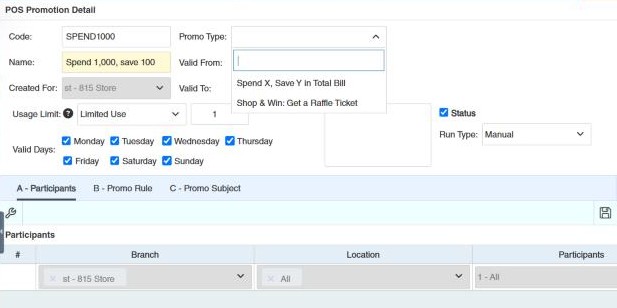
You can choose from two promotion types:
| Promo Type | What the customer gets | Example |
|---|---|---|
| Spend X, Save Y in Total Bill | A saving on the whole bill when it reaches an amount. | Spend 1,000, save 100. |
| Shop & Win: Get a Raffle Ticket | Raffle tickets printed at the POS when they buy the products you choose. | Buy any product of a brand, get 1 raffle ticket. |
How to create a promotion
-
Open POS › POS Promotion and click ⊕ (Add New POS Promotion).
-
Fill in the header:
Field What to enter Code / Name A code and a name. The name is required. Created For Your branch (filled in). Promo Type One of the two types above. Choose it first: the tabs below change with it. If you change it later, the rows you entered on the tabs are cleared. Valid From / Valid To The start and end date and time. Valid Days The days of the week it runs. Usage Limit How many times the promotion can be applied in one sale, or unlimited. Run Type Manual or Automatic: how the POS applies it. For Spend X, Save Y in Total Bill it is always Manual. Status Tick to turn the promotion on. Remarks Optional notes. -
On the Participants tab, choose the Branch, the Location and who can get the promotion: All, All Walk-in Customers, All Regular Customers, All Members, or a specific Regular Customer, Member or Member Type.
-
Set the rule and the reward on the Promo Rule (X) and Promo Subject (Y/Z) tabs (see below for each type).
-
Click 💾 (Save).
Spend X, Save Y in Total Bill
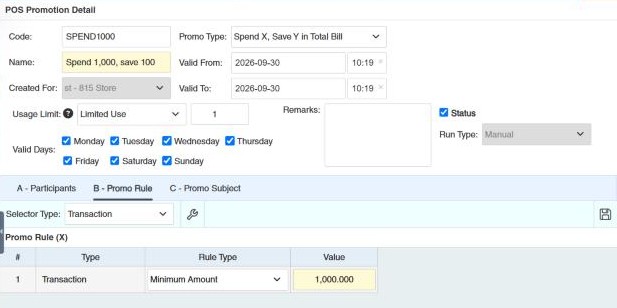
- Promo Rule (X): choose Selector Type Transaction, then the Rule Type and the amount in Value:
- Minimum Amount: the saving is given once the bill reaches the amount.
- In every "X" amount: the saving is given for every full amount spent, so it repeats as the bill grows (for example, save 50 for every 100: a bill of 300 saves 150).
- Promo Subject (Y/Z): choose Selector Type Transaction, then the Discount Type and its Value:
- Adjust Price: an amount. Positive value in "Adjust Price" will be applied as an added price. Enter a negative value if you intend to reduce the price.
- Adjust Percentage: a percentage of the bill. It can't be 0.
Shop & Win: Get a Raffle Ticket
- Promo Rule (X): choose what the customer must buy with Selector Type: All Products, Product, Brand, Category or Supplier. For each row, set the Rule Type (Minimum Quantity or Minimum Amount) and the Value. For All Products, a brand, a category or a supplier, Sub-Rule Type says whether the minimum counts per product (Individual Product) or for all its products together (Product Combination). With several rows, Rule Coverage Condition says whether each row can be met on its own (Individual) or all rows must be met (Combined).
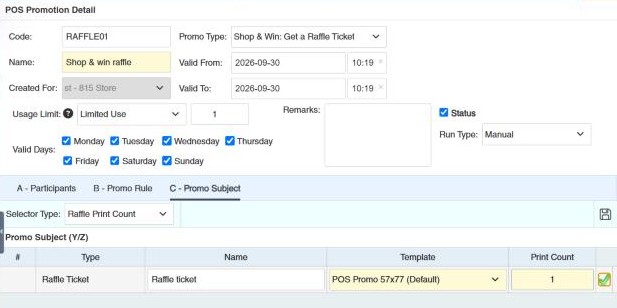
- Promo Subject (Y/Z): choose Selector Type Raffle Print Count. Enter a Name, the Template the ticket is printed with (see Raffle Template) and the Print Count: how many tickets to print.
To change the dates, status or other fields on several promotions at once, tick them in the list and use Bulk Update.
Other permissions for this module
| Permission | Allows you to |
|---|---|
| POS › POS Promotion › Update | Change promotions |
| POS › POS Promotion › Delete | Delete promotions |
| POS › POS › Add POS Promotion | Add a promotion manually at the POS |