About Reports
CIRMS has over 100 reports, grouped by topic under Reports in the menu. They all work the same way.
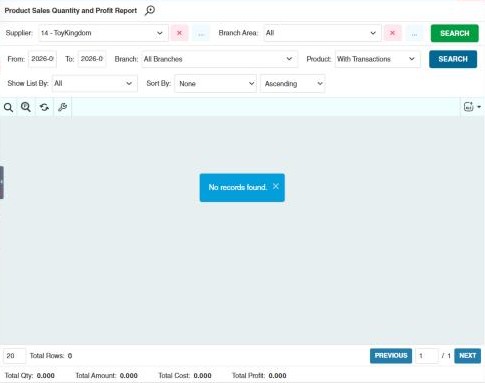
How to run a report
- Open Reports, expand the group (for example Product Reports) and click the report.
- Set the filters at the top, for example the date range (From / To), Branch, Supplier or Category.
- Click Search. The results and totals appear below.
tip
- Many reports have 🔍 Filter By Product, to limit the report to chosen products, brands or categories.
- Click 🔍 (Filters) for more filters. If you have General › System Wide › Configure Express Filter, you can choose which filters show at the top with Edit Express Filter.
- Use 🔧 (Column Settings) to show or hide columns. Your choice is remembered.
How to export or print a report
- Export Excel: downloads the results to Excel. Large reports are exported in batches, and you'll see a progress bar.
- Print: prints the report, where available.
Who can see which report
Each report has its own view permission under Reports on the User permissions screen. You only see the reports you're allowed to view, and only for the branches you have access to. Reports that show costs or profit may need an extra permission.
Report groups
- Product Reports
- Financial Reports
- Partner Reports
- Ranking Reports
- Warning Reports
- POS Reports
- Other Reports
- Stock Delivery Outbound Reports
- Pending Transaction Reports
- Transaction Detail Reports
Settings that affect reports
Your administrator can change these in Settings (see About settings). Click a section to see the choices.
Generic Settings › Company Info
Generic Settings › Display
- Default number of rows (max of 100)
- Monetary Precision
- Sorting & Express Filter: Apply last sorting/filter used and corresponding values as preset references?
- Display type of "Date and Time" filter in all applicable modules
Generic Settings › Income Statement
Generic Settings › Product Inventory Warning
- During creation of Purchase Order and Stock Request, Suggested Qty value will base on the following formula
- During creation of Purchase Order and Stock Request, apply Rounding Off to the nearest ones in Suggested Qty value (If value has decimal)
Generic Settings › Product
Generic Settings › Reports
- Choose how reports module behave when you open them.
- Calculate totals and quantities automatically during report load.
Generic Settings › Security
Branch Settings › Report Modules