Purchase Order
A purchase order (PO) lists the products you plan to buy from a supplier.
Stock goes up only when you receive the goods in an approved Purchase Inbound. You can skip purchase orders and create a Purchase Inbound directly if you don't need them.
Menu: Purchase and Other Expense › Purchase Order
For buttons, statuses and approvals shared by all transactions, see Working with transactions.
How to create a purchase order
-
Open Purchase and Other Expense › Purchase Order and click ⊕ (Add New Transaction).
-
Fill in the header:
Field What to enter Created For The branch the PO belongs to. It defaults to your current branch. For Location The location in your branch that the PO is for. Request by The user requesting the purchase. Deliver To The location, in any branch, where the supplier should deliver. Deliver Until The latest acceptable delivery date. It's filled in when you pick the supplier. Supplier The supplier you're ordering from. Payment Method How you'll pay the supplier. Term Number of days until payment is due. Requesting Branch / Request Location Only if you're ordering on behalf of another branch: that branch and its location. Remarks Optional notes. They appear on the printout. -
Add the products and quantities (see How to add products).
-
Click Save ▾ and choose Save, Approve or Approve and Print.
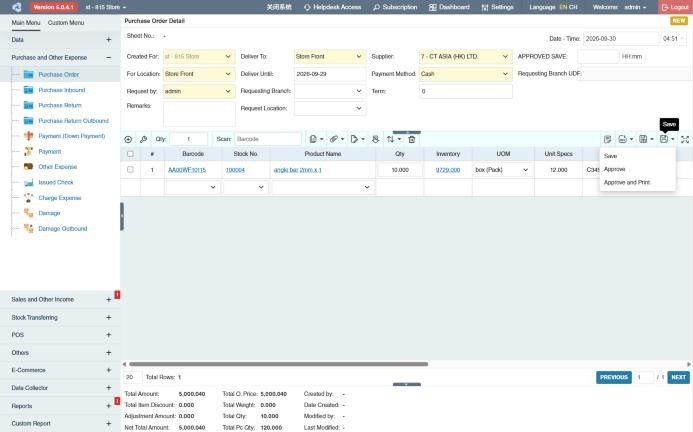
The PO gets a Sheet No. (for example PO10010000349). If you saved it as a Draft, click 👍 For Approval when it's ready for an approver.
If a product would go over its maximum inventory, a Continue to add products? message lists each affected product with its total, maximum and excess quantities. Click OK to save anyway or Cancel to change the quantities.

How to receive a purchase order (create a Purchase Inbound)
When the goods arrive, turn the approved PO into a Purchase Inbound.
From the list (one or several POs):
- In the Purchase Order List, tick the approved POs to receive.
- Click the Create Purchase Inbound icon in the toolbar.
- In the window that opens, check each product's Qty and UOM. Change the quantity if only part of the order arrived. If you selected several POs, switch between them with the Transaction dropdown.
- Choose the Approval Status the new inbound gets: Draft (the default) or, if you can approve purchase inbounds, Approved.
- Click the 🧺 (create) button.
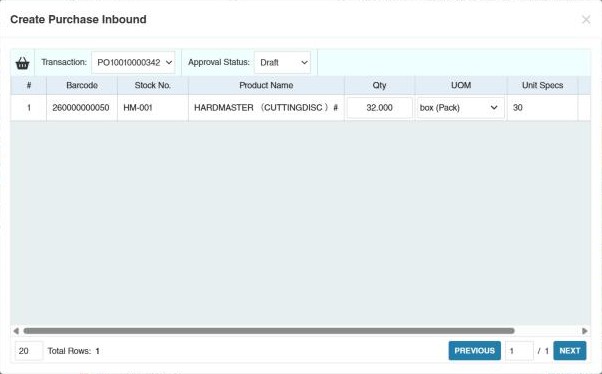
From an open PO: tick the product rows to receive (tick the header box for all of them), click the 🧺 Create Purchase Inbound button, then check the quantities and click 🧺 in the window. If no row is ticked, CIRMS shows No selected product. The new inbound opens as a Draft.
CIRMS creates the Purchase Inbound and opens it, already linked to the PO. Complete the details there and approve it to add the stock. See Purchase Inbound.
In the PO list, the Imported To column shows the inbounds created from each PO, and the row colour shows whether the PO has been fully received.
Other things on a purchase order
- Columns for purchasing: Supplier SKU (the supplier's own code, printed for the supplier), Received Qty and Remaining Qty (how much of each row has arrived and is still expected), and Latest Price, Lowest Price and Highest Price (what you paid this supplier before). The other columns are described in The product lines.
- Transaction Reminder: if your administrator switched it on, adding a product that is still on another open PO opens a window listing those POs with their Order Qty and Received Qty, so you don't order the same goods twice.
- Down payment: to pay the supplier in advance, create a Payment (Down Payment) for the approved PO. It's deducted when you later pay the inbound.
- Linked transactions: the summary at the bottom right links to the transactions made from the PO (purchase inbounds, down payments, payments), with their status.
- Clear Undelivered Transactions: when the supplier won't deliver the rest, closes the PO's remaining quantities (see Other tools on orders).
Example
The main store orders from Metro Foods, which takes 7 days to deliver and gives 30 days' credit:
- Create a PO: Supplier Metro Foods (Deliver Until becomes 7 days from today, Term 30), 100 cases of Canned Tuna 155 g at 1,368.00 and 50 cases of Corned Beef 150 g at 1,650.00. Total Amount 219,300.00. Approve it and e-mail it to the supplier with ✉.
- Six days later, 80 cases of tuna and all the corned beef arrive. Create the purchase inbound from the PO and change the tuna to 80. After approval, stock goes up by 80 and 50 cases, and the PO shows Remaining Qty 20 for the tuna.
- The supplier says the last 20 cases won't come: open the PO and use Clear Undelivered Transactions, answering no, to close them.
- Within 30 days, pay the inbound in Payment.
How to find a purchase order
- Open Purchase and Other Expense › Purchase Order.
- Set Branch, Trans. Date and Transaction Status, then click Search.
You see only your own POs unless you have Purchase and Other Expense › Purchase Order › View Other Users' Transaction.
Settings that affect this module
Your administrator can change these in Settings (see About settings). Click a section to see the choices.
Generic Settings › Purchase
- Warn if inventory exceeds maximum?
- Auto-print after Save?
- Set the default printout template for this transaction module
- Enable transaction reminder popup for products with pending remaining order qty's to inbound.
- Auto input product Quantity and UOM base on History?
Branch Settings › Purchases
Other permissions for this module
| Permission | Allows you to |
|---|---|
| Purchase and Other Expense › Purchase Order › Approve | Approve POs |
| Purchase and Other Expense › Purchase Order › Decline | Decline POs |
| Purchase and Other Expense › Purchase Order › Revert | Revert POs back to draft |
| Purchase and Other Expense › Purchase Order › Edit Price | Change the price on a PO row |
| Purchase and Other Expense › Purchase Order › Show Cost | See product costs |
| Purchase and Other Expense › Purchase Order › Edit Date/Time | Change the PO's date and time |
| Purchase and Other Expense › Purchase Order › Clear Undelivered Transactions | Close POs that won't be fully delivered |