Menus and My Menu
The left sidebar has two tabs: Main Menu and Custom Menu.
Main Menu
All modules, grouped into sections:
- Data
- Purchase and Other Expense
- Sales and Other Income
- Stock Transferring
- POS
- Others
- E-Commerce
- Data Collector
- Reports
Click a section to expand it, then click a module. You see only the modules you have permission to view.
A red badge next to a section or module means something needs your attention, such as overdue transactions waiting to be collected. Hover over the badge to see what it counts, and click it to open the matching list.
Some modules show a + when you hover over them. Click it to go straight to a new transaction.
How to set up your own menu (My Menu)
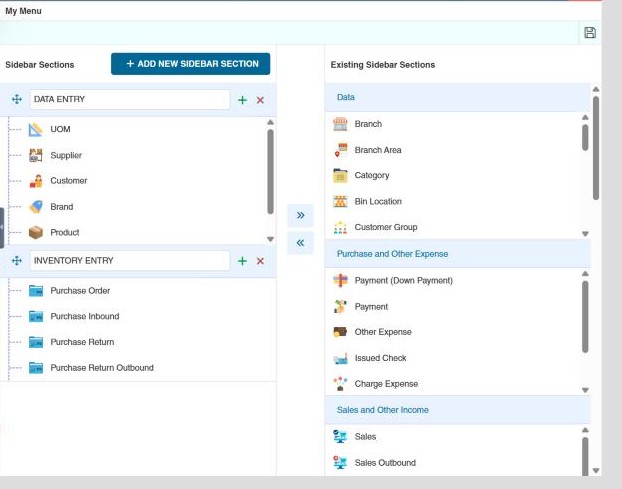
My Menu lets you put the modules you use most into your own groups. They appear on the Custom Menu tab.
-
Click your user name at the top right, then My Menu.
-
Click Add New Sidebar Section and type a name for the group, for example
DATA ENTRY. -
Click the group's header bar (beside its name, not on the name itself) to select it. It turns blue.
-
In Existing Sidebar Sections on the right, select the modules you want, then click « to move them into the selected group. To take a module out, select it in your group and click ».
To organise a group further, click its + to add a folder inside it.
-
Drag a group's ✥ handle to change its order.
-
Click the 💾 (Save) icon at the top right.
Open the Custom Menu tab in the sidebar to use your menu.