Working with lists
Every module opens on a list of its records, for example the Purchase Order List. All lists work the same way.
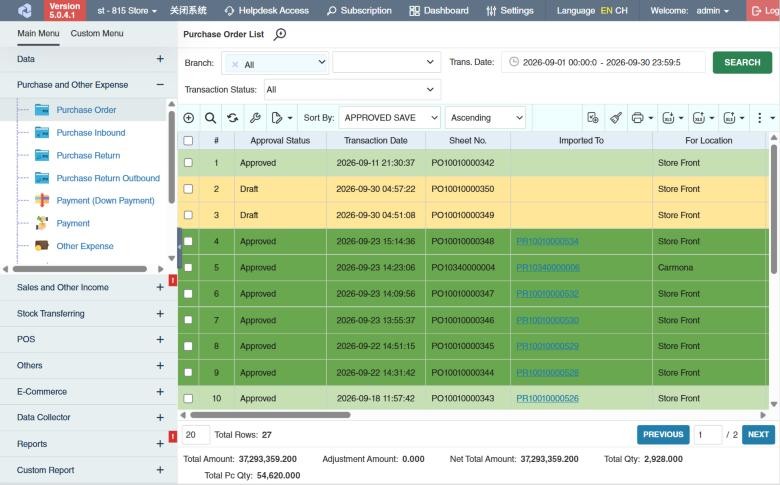
How to search a list
- Set the filters at the top. Transaction lists usually have Branch, Trans. Date and Transaction Status.
- Click Search.
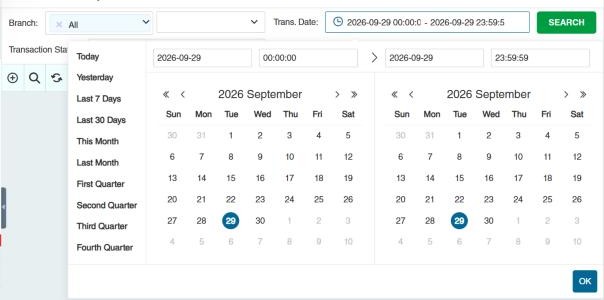
For Trans. Date, click the date box to open the calendar. Pick a start and end date, or choose a quick range on the left (Today, Yesterday, Last 7 Days, This Month and so on), then click OK.
Click the 🔍 (Filters) icon in the toolbar for all available filters. If you have the General › System Wide › Configure Express Filter permission, you can also click the 🔍 next to the list title (Edit Express Filter) to choose which filters appear at the top of the list.
The list toolbar
| Icon | Name | What it does |
|---|---|---|
| ⊕ | Add New Transaction | Opens a new, blank record. |
| 🔍 | Filters | Opens all search filters. |
| ⟳ | Refresh | Reloads the list. |
| 🔧 | Column Settings | Shows, hides and resizes columns. |
| ✎▾ | Bulk Edit | Changes a field (for example Requested By or Remarks) on all selected records at once. |
| Sort By | Sorts the list by a column, Ascending or Descending. | |
| 🧹 | Clear Undelivered Transactions | Closes approved transactions whose remaining quantities will never be delivered. |
| 🖨▾ | Prints the selected records using a printout template. | |
| ▾ | Import Excel | Creates records from an Excel file. |
| ▾ | Export Excel / Export Detail | Downloads the list (one row per record) or the details (one row per product) to Excel. |
| ⋮ | Bulk Action | Runs For Approval, Approve, Decline, Revert or Delete on all selected records. |
You see only the icons you have permission to use.
How to act on several records at once
- Tick the boxes on the left of the rows you want. Tick the box in the header to select every row on the page.
- Click ⋮ (Bulk Action) and choose the action.
- If some records couldn't be processed, click View Error Logs to see why.
What the row colours mean
If your company turns on Transaction List: Apply row color based on Transaction Status (in Settings), each row is coloured by its status:
| Colour setting | Used for |
|---|---|
| Draft | Saved, not yet submitted |
| For Approval | Waiting for approval |
| Declined | Rejected |
| Deleted | Deleted |
| No Inbound/Outbound/Payment/Collection | Approved, but nothing received, delivered, paid or collected yet |
| Incomplete Inbound/Outbound/Payment/Collection | Approved and partly received, delivered, paid or collected |
| Complete Inbound/Outbound/Payment/Collection | Approved and fully received, delivered, paid or collected |
Your administrator picks the actual colours.
Totals and paging
The bottom of the list shows Total Rows and the totals for the rows found (for example Total Amount and Total Qty). Use Previous / Next, or type a page number, to move between pages. The box on the left sets how many rows appear per page.
Settings that affect all screens
Your administrator can change these in Settings (see About settings). Click a section to see the choices.
Generic Settings › Company Info
Generic Settings › Display
- System Theme
- Default number of rows (max of 100)
- Monetary Precision
- Hide Deleted Transactions
- Transaction List: Apply row color based on Transaction Status
- Display current user's ID and code as watermark in the entire part of system?
- Sorting & Express Filter: Apply last sorting/filter used and corresponding values as preset references?
- Display type of "Date and Time" filter in all applicable modules
- Passcode Length
- Display badge count in all applicable modules?
- Transaction List: Refresh the list after bulk edits?
- Default duration for date selectors (# of days from current date)
Generic Settings › Product
- Enable Sorting Feature in Product List
- Enable auto display of total Row Count of Product in Product List, will cause slow down in loading if enabled
Generic Settings › Purchase and Other Payment
Generic Settings › Sales and Other Income
Generic Settings › Security
- Password auto expired in no. of days (set as 0 to ignore expiration)
- Require 8 characters and must consist of at least: 1 character, 1 number, and 1 special character?
Generic Settings › Stock Transferring
Generic Settings › Transaction Setting