Counter
A counter groups a regular customer's unpaid Sales Outbound transactions (less any Sales Return Inbound) into one statement. Give it to the customer as a billing statement, then collect it in one step in Collection.
Counters are for regular customers only.
Menu: Sales and Other Income › Counter
How to create a counter
- Open Sales and Other Income › Counter and click ⊕ (Add New Transaction).
- Choose the Customer, and add Remarks if needed.
- Click Sales Outbound Selector (SI icon), tick the outbounds to include, then click Add or Add & Continue.
- To deduct returns, click Sales Return Inbound Selector (SR icon) and add them the same way.
- Click 💾 (Save).
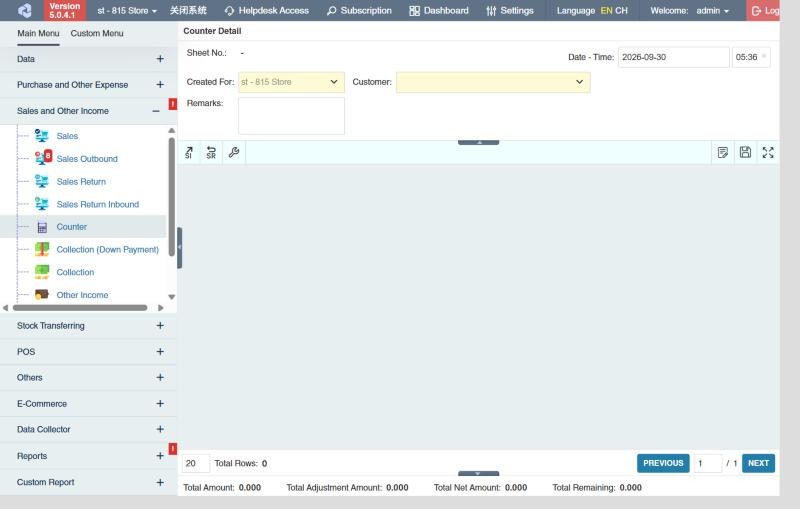
The bottom of the screen shows the total amount, adjustments, net amount and total remaining.
To remove a transaction from the counter, use Remove Transaction on its row.
Example
At month end, SuperMart wants one statement for all of June: 14 sales outbounds totalling 486,000.00 and 2 returns of 12,400.00. Create a counter for SuperMart, add the 14 outbounds and the 2 returns, save and print it as the statement (net 473,600.00). When SuperMart pays, create a Collection, add the counter with Counter Selector, and all 16 transactions are settled at once.
Settings that affect this module
Your administrator can change these in Settings (see About settings). Click a section to see the choices.
Generic Settings › Sales and Other Income
Branch Settings › Collection
Other permissions for this module
| Permission | Allows you to |
|---|---|
| Sales and Other Income › Counter › Approve | Approve counters |
| Sales and Other Income › Counter › Print | Print the counter |
| Sales and Other Income › Counter › Delete | Delete counters |
| Sales and Other Income › Counter › View Other Users' Transaction | See counters created by other users |