Sales Return
A sales return lists products a customer is returning.
Stock goes up only when the goods are received back in an approved Sales Return Inbound. You can skip this module and create a Sales Return Inbound directly.
Menu: Sales and Other Income › Sales Return
For buttons, statuses and approvals shared by all transactions, see Working with transactions.
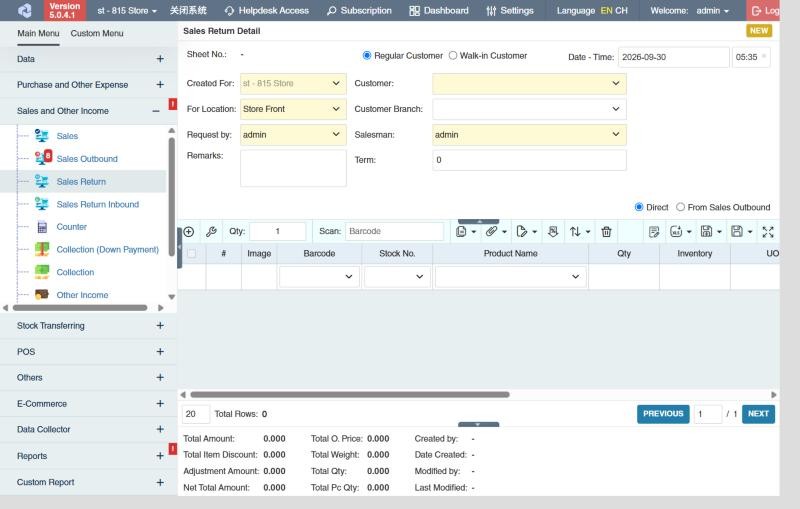
How to create a sales return
- Open Sales and Other Income › Sales Return and click ⊕ (Add New Transaction).
- Choose Regular Customer or Walk-in Customer, and fill in Customer (or Walk-in Name), Customer Branch, Salesman, Term and Remarks.
- Choose how to add products:
- Direct: add the products yourself.
- From Sales Outbound: pick the Sales Outbound the goods were sold on and click Import. Keep only the products and quantities being returned.
- Click Save ▾ and choose Save, Approve or Approve and Print.
How to receive the goods back (create a Sales Return Inbound)
- In the sales return list, tick the approved returns.
- Click the Create Sales Return Inbound icon in the toolbar.
- Check the quantities and choose the Approval Status of the new transaction: Draft or, if you can approve sales return inbounds, Approved.
- Click the 🧺 (create) button.
Approve the new Sales Return Inbound to put the goods back into stock. See Sales Return Inbound.
Example
ABC Grocery reports that 10 of the 50 sacks of rice delivered last week are wet and wants to return them:
- Create a sales return for ABC Grocery, importing the original sales outbound so the price (1,150.00) is copied, and keep 10 sacks. Approve: the 10 sacks are now expected back (they count in Requested Qty).
- When the driver brings them back, create the sales return inbound from the return and approve it: stock goes up by 10, and the customer's balance goes down by 11,500.00.
Settings that affect this module
Your administrator can change these in Settings (see About settings). Click a section to see the choices.
Generic Settings › Product
Generic Settings › Sales and Other Income
- Hide all Sales & Collection Transactions before the specified date?
- Allow negative qty (as Returns) in Sales and Sales Outbound
- For sales transaction, restrict products with "Zero" prices
Generic Settings › Sales Return
- Allow to create sales return transaction without referencing of sales outbound transaction
- Allow to create return inbound transaction without reference sales return.
- Auto-print after Save?
- Set the default printout template for this transaction module
Other permissions for this module
| Permission | Allows you to |
|---|---|
| Sales and Other Income › Sales Return › Approve | Approve sales returns |
| Sales and Other Income › Sales Return › Revert | Revert them back to draft |
| Sales and Other Income › Sales Return › Edit Price | Change the price on a row |
| Sales and Other Income › Sales Return › View Other Users' Transaction | See returns created by other users |