Stock Delivery Inbound
A stock delivery inbound records stock received from another branch. When it's approved, the quantities are added to stock at the For Location.
Menu: Stock Transferring › Stock Delivery Inbound
For buttons, statuses and approvals shared by all transactions, see Working with transactions.
How to receive a delivery
-
Open Stock Transferring › Stock Delivery Inbound and click ⊕ (Add New Transaction).
-
Fill in Created For, For Location (where you're receiving the stock), Request by and Remarks.
-
In Outbound, choose the sending branch's Stock Delivery Outbound (or type its sheet number), then click Import.
The Delivery From and Delivery From Location are filled in from the outbound.
-
Change the quantities to what actually arrived. You can't receive more than was sent.
-
Click Save ▾ and choose Save, Approve or Approve and Print.
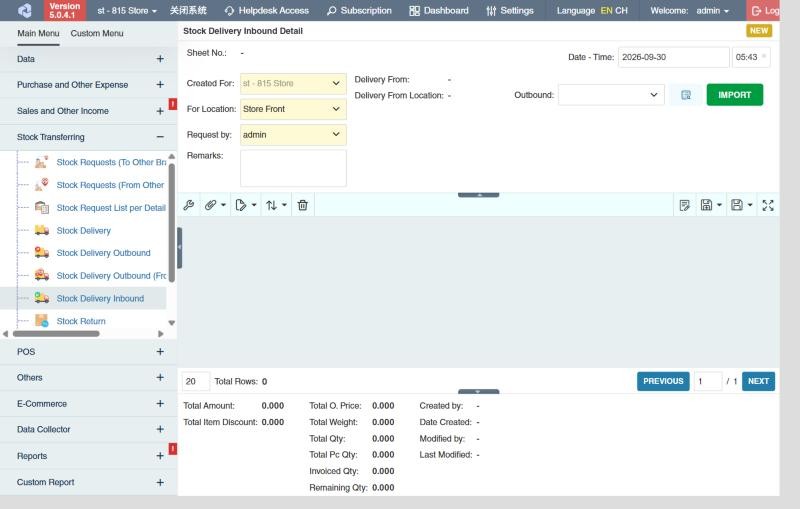
The summary shows the Invoiced Qty (sent) and Remaining Qty (not yet received).
To see what's on its way before it arrives, open Stock Delivery Outbound (From Other Branches).
What approval does
- Stock goes up at your For Location; serial numbers become available at your branch.
- The outbound's remaining (in-transit) quantities go down; when everything is received it drops off the pending report.
- If your branch passes stock on to other branches, an outbound can be created from this inbound (see the Pending Stock Delivery Inbound Report).
Example
The truck from the warehouse arrives at Store 2. The supervisor creates a stock delivery inbound, chooses the warehouse's outbound, imports it and counts: 48 towels and 22 bottles of shampoo (2 are missing). She changes the shampoo to 22 and approves. Stock rises by 48 and 22; the 2 missing bottles stay open on the outbound for the warehouse to investigate.
Settings that affect this module
Your administrator can change these in Settings (see About settings). Click a section to see the choices.
Generic Settings › Stock Delivery Inbound
- Auto-print after Save?
- Auto select product batch during transaction saving if none is selected
- Set the default printout template for this transaction module
- Allow over-receiving from delivery outbound?
Other permissions for this module
| Permission | Allows you to |
|---|---|
| Stock Transferring › Stock Delivery Inbound › Approve | Approve inbounds, which adds the stock |
| Stock Transferring › Stock Delivery Inbound › Revert | Revert inbounds back to draft |
| Stock Transferring › Stock Delivery Inbound › View Other Users' Transaction | See inbounds created by other users |