Stock Return
A stock return lists products you plan to send back to another branch, for example excess or wrong items from a transfer.
Stock leaves your branch only when you approve a Stock Return Outbound. You can skip this module and create a Stock Return Outbound directly.
Menu: Stock Transferring › Stock Return
For buttons, statuses and approvals shared by all transactions, see Working with transactions.
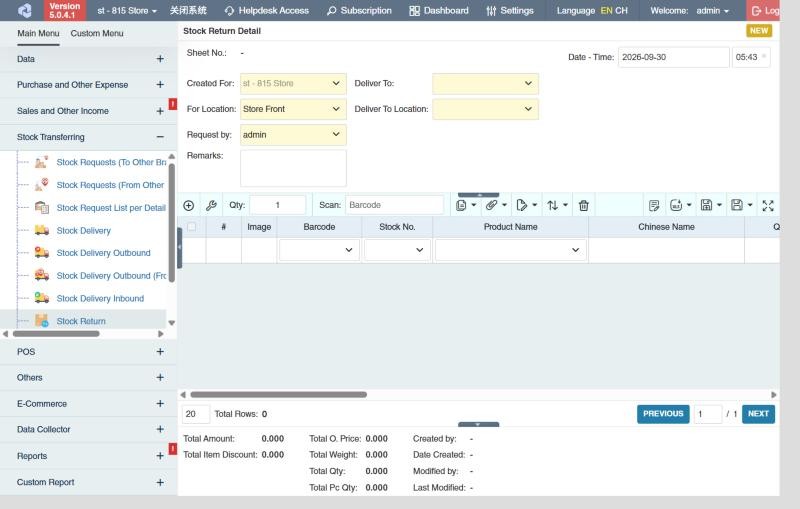
How to create a stock return
- Open Stock Transferring › Stock Return and click ⊕ (Add New Transaction).
- Fill in Created For, For Location (where the stock leaves from), Request by, Deliver To and Deliver To Location (the branch and location you're returning to), and Remarks.
- Add the products and quantities (see How to add products).
- Click Save ▾ and choose Save, Approve or Approve and Print.
How to send the return (create a Stock Return Outbound)
- In the stock return list, tick the approved returns.
- Click the Create Stock Return Outbound icon in the toolbar.
- Check the quantities and choose the Approval Status of the new outbound: Draft or, if you can approve stock return outbounds, Approved.
- Click the 🧺 (create) button.
Approve the new Stock Return Outbound to take the stock out of your branch. See Stock Return Outbound.
Example
Store 2 received 24 winter jackets it can't sell. It creates a stock return to the warehouse for the 24 jackets and approves it, so they're reserved and not sold meanwhile; when they're packed, it creates the stock return outbound from it.
Settings that affect this module
Your administrator can change these in Settings (see About settings). Click a section to see the choices.
Generic Settings › Stock Return
- Warn if inventory reaches minimum?
- Auto-print after Save?
- Set the default printout template for this transaction module
Branch Settings › Stock Return
Other permissions for this module
| Permission | Allows you to |
|---|---|
| Stock Transferring › Stock Return › Approve | Approve stock returns |
| Stock Transferring › Stock Return › Revert | Revert them back to draft |
| Stock Transferring › Stock Return › View Other Users' Transaction | See returns created by other users |