Stock Delivery Outbound
A stock delivery outbound records stock leaving your branch for another branch. When it's approved, the quantities are removed from stock at the For Location. The receiving branch then receives them with a Stock Delivery Inbound.
Menu: Stock Transferring › Stock Delivery Outbound
For buttons, statuses and approvals shared by all transactions, see Working with transactions.
How to send stock to another branch
You can start from a request in Stock Requests (From Other Branches), or from an approved Stock Delivery. To create one here:
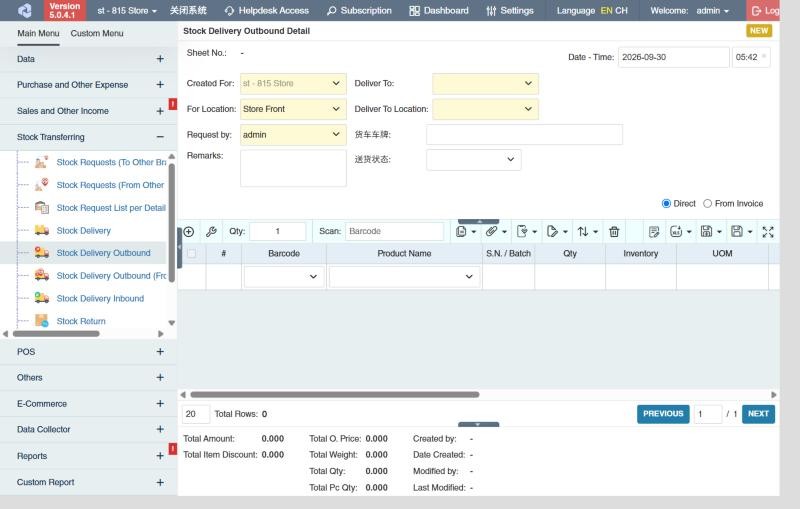
- Open Stock Transferring › Stock Delivery Outbound and click ⊕ (Add New Transaction).
- Fill in Created For, For Location (where the stock leaves from), Request by, Deliver To and Deliver To Location (the receiving branch and location), and Remarks.
- Choose how to add products:
- Direct: add the products yourself.
- From Invoice: pick an approved Stock Delivery or Stock Request and click Import.
- Click Save ▾ and choose Save, Approve or Approve and Print.
Approving removes the stock from your branch right away, even before the other branch receives it. If the goods don't leave after all, Revert the outbound (requires Stock Transferring › Stock Delivery Outbound › Revert). You can't revert it once the receiving branch has imported it into a Stock Delivery Inbound.
Incoming deliveries from other branches
Stock Delivery Outbound (From Other Branches) lists outbounds other branches have sent to your branch, so you can see what's on its way. It's view-only. To receive the stock, create a Stock Delivery Inbound.

What approval does
- Stock goes down at your For Location. The goods are in transit until the other branch receives them: they show as in-transit quantity at the receiving branch, and serial numbers are On Transit.
- The stock delivery's remaining quantities go down.
- The receiving branch sees the outbound in Stock Delivery Outbound (From Other Branches) and receives it with a Stock Delivery Inbound. Until then it's listed in the Pending Stock Delivery Outbound Report.
Example
The truck leaves with 48 towels and 24 bottles of shampoo for Store 2: import the approved stock delivery, pick the shampoo's batch, print the delivery receipt with Approve and Print, and send the printout with the driver.
Settings that affect this module
Your administrator can change these in Settings (see About settings). Click a section to see the choices.
Generic Settings › Product
Generic Settings › Stock Delivery Outbound
- Warn if inventory reaches minimum?
- Auto-print after Save?
- Auto select product batch during transaction saving if none is selected
- Set the default printout template for this transaction module
Generic Settings › Stock Delivery
Branch Settings › General
Branch Settings › Stock Delivery Outbound
Other permissions for this module
| Permission | Allows you to |
|---|---|
| Stock Transferring › Stock Delivery Outbound › Approve | Approve outbounds, which removes the stock |
| Stock Transferring › Stock Delivery Outbound › Clear Undelivered Transactions | Close outbounds that won't be fully received |
| Stock Transferring › Stock Delivery Outbound › View Other Users' Transaction | See outbounds created by other users |