Barcode Printing
Print barcode stickers for your products. There are two screens:
- Barcode Printing: build a list of products and quantities and print stickers for all of them, using a Barcode Template.
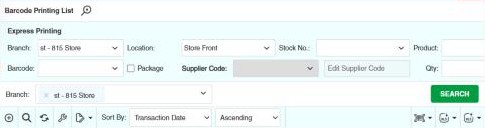
- Barcode Express Printing: find one product and print its stickers straight away.
You can also print barcodes from the Product list and from transactions with the Barcode Print button.
Menu: Others › Barcode Printing or Barcode Express Printing
How to print stickers for many products
Others › Barcode Printing › Create and Others › Barcode Printing › Barcode Print
- Open Others › Barcode Printing and click ⊕ (Add New Transaction).
- Add the products and the number of stickers for each (Qty). You can also Import Excel.
- Save, then use Barcode Print and choose the sticker template and size.
How to print stickers for one product quickly
- Open Others › Barcode Express Printing.
- Choose the Branch (its prices are printed) and find the product by name, Stock No. or Barcode.
- Enter the number of stickers in Qty and choose the Sticker Size.
- Click Generate to see the Print Preview on the right, then click Print.
To print another branch's prices, you need Others › Barcode Express Printing › Select Other Branch Prices.
Example
After receiving 40 new products, the store prints shelf stickers: create a barcode printing, add the products (or copy them from the purchase inbound), set the number of stickers per product, choose the barcode template for 40 × 30 mm labels and print. For one product in a hurry, use the quick printing described above.
Settings that affect this module
Your administrator can change these in Settings (see About settings). Click a section to see the choices.
Generic Settings › Barcode Printing