Physical Inventory Count
Use a physical inventory count (PIC) to record what you actually counted on the shelves. A count doesn't change stock by itself. Once it's approved, convert it to an Inventory Adjust, which updates the stock.
Menu: Others › Physical Inventory Count
For buttons, statuses and approvals shared by all transactions, see Working with transactions.
How to record a count
-
Open Others › Physical Inventory Count and click ⊕ (Add New Transaction).
-
Fill in Created For, For Location, Request by, and optionally Remarks and Shelf Location (the shelf or area you counted).
-
Add the products and enter the counted quantities. You can count more than once: the screen tracks the first, second and final count.
tipCounting with a handheld? Record the count in the Data Collector app and import it. See Data Collector.
-
Click Save ▾ and choose Save, Approve or Approve and Print.
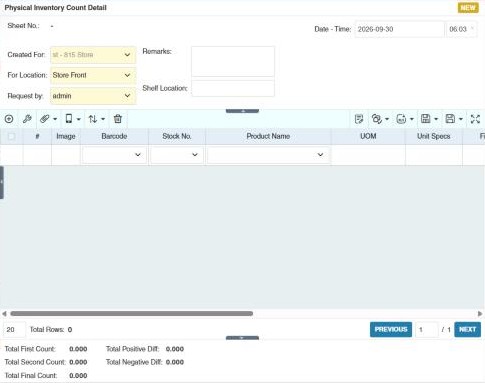
The summary shows the total first, second and final counts, and the total positive and negative differences from the system stock.
How to update stock from your counts
- In the physical inventory count list, click Convert to Inventory Adjust in the toolbar.
- Choose the date range and click Convert. All Physical Inventory Count transactions under this date range selected will be converted to Inventory Adjustments
- When it's done, the new adjustments appear in Inventory Adjust. The count list shows the Inv Adjust Sheet No. each count was converted to.
Example
Year-end count at the main store: two teams count aisles 1–10 on the evening of 31 December, each recording a count per aisle (Shelf Location). The second count checks the first where they differ; the final count is approved. On 1 January, Convert to Inventory Adjust for 31 December creates the inventory adjustments that bring the system stock to the counted quantities, and the Detail Inventory Adjust Report shows the gains and losses.
Settings that affect this module
Your administrator can change these in Settings (see About settings). Click a section to see the choices.
Generic Settings › Inventory Adjust
Generic Settings › Physical Inventory Count
Other permissions for this module
| Permission | Allows you to |
|---|---|
| Others › Physical Inventory Count › Approve | Approve counts |
| Others › Physical Inventory Count › Revert | Revert counts back to draft |
| Others › Physical Inventory Count › Import Excel | Import counts from Excel |