Member
Members are customers enrolled in your loyalty program. At the POS, a member's card is scanned so they get their Member Rate discount and earn points.
Menu: Data › Member
How to register a member
-
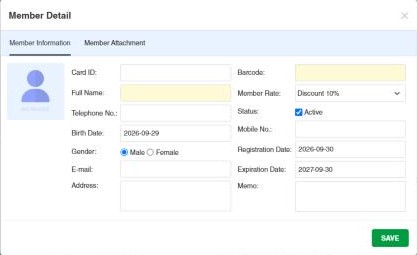
Open Data › Member and click ⊕.
-
Fill in:
Field What to enter Card ID The number printed on the member's card. Barcode The card's barcode (required). Full Name The member's name (required). Member Rate Their Member Rate, which sets their discount. Birth Date, Gender Personal details. Telephone No., Mobile No., E-mail, Address Contact details. Registration Date / Expiration Date When the membership starts and ends. Status Tick Active. Memo Optional notes. -
Optionally add a photo, and files on the Member Attachment tab.
-
Click Save.
To add or deduct a member's points manually, use Member Load. Each member's points history is in the Membership Points Transaction Report, and what they buy in the Member Product Report.
The member list
Besides ⊕ Add New Member, Filters, Column Settings and Export List, the toolbar has:
- Import: adds new members from Excel (download the Excel Template first; results in View Logs).
- Update Member Details: updates existing members from Excel, matched by Member Name, Member Card ID or Member Barcode (Update Based On).
Example. A store launches a loyalty card: it prints cards with barcodes 8800001 to 8801000, fills an Excel file with the first 300 members (name, card ID, barcode, mobile, Member Rate Silver) and imports it. At the POS, scanning the card gives the member the Silver discount and points.
Settings that affect this module
Your administrator can change these in Settings (see About settings). Click a section to see the choices.
Branch Settings › Member
Other permissions for this module
| Permission | Allows you to |
|---|---|
| Data › Member › Update | Change member details |
| Data › Member › Update Expiration Date | Change the expiration date |
| Data › Member › Delete | Delete members |
| Data › Member › Import Excel | Import members from Excel |