Supplier
Suppliers are the companies you buy from. They're used in purchase orders, inbounds, returns and payments, and on each product's Supplier tab, where each product's suppliers and their purchase prices are kept. Saving a supplier doesn't change stock or money.
Menu: Data › Supplier
The supplier list
Search by the express filters (for example Name) and click SEARCH. The toolbar has ⊕ Add New Supplier, Filters, Refresh, Column Settings, Sort By and Export List (see Working with lists). The list can show every detail of the supplier as a column, including Term and Status. Click a supplier to open it.
How to add a supplier
-
Open Data › Supplier and click ⊕.
-
On the Basic Information tab, fill in:
Field What to enter Code A short code. Full Name The supplier's name (required). Chinese Name The Chinese name, if any. Contact / Address Contact details. Term Default payment term in days. It's copied into new purchase transactions and sets their due date, which the payment due warning uses. Status Tick Active to use the supplier in transactions. Order Lead Time Days it usually takes this supplier to deliver. A new purchase order for this supplier gets Deliver Until = today + this number of days. -
On the Advance Information tab, add further details such as Owner's Name, Landline, Mobile No., E-mail Address, Company Website, Contact Person, Bank Account Name and Memo.
-
Click Save.
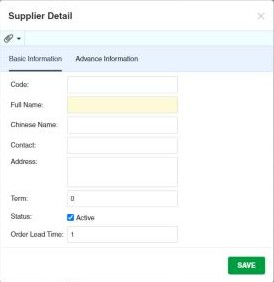
Use 📎 to attach files such as contracts or price lists.
Example. Metro Foods delivers within 7 days and gives 30 days' credit: Full Name Metro Foods Inc., Term 30, Order Lead Time 7. A purchase order created on 1 June gets Deliver Until 8 June, and the purchase inbound received on 5 June is due on 5 July.
How to delete a supplier
Click 🗑 on the supplier's row and confirm. If products use the supplier, the Product Supplier window opens (Choose to update product info.): click the supplier that should replace it on those products. CIRMS moves the products to that supplier and then deletes the old one.
Settings that affect this module
Your administrator can change these in Settings (see About settings). Click a section to see the choices.
Generic Settings › Purchase Inbound
Generic Settings › Purchase
Other permissions for this module
| Permission | Allows you to |
|---|---|
| Data › Supplier › Update | Change supplier details |
| Data › Supplier › Delete | Delete suppliers |
| Data › Supplier › Import Excel | Import suppliers from Excel |